
Creative teams are frequently tasked with providing scripts, visuals, and brand deliverables on several projects simultaneously. Regardless of whether they need to support marketing campaigns, brand launches, or work on a specific project with an existing client, teams are expected to be consistent and work within limited production timelines. Hand-coding in scripts and creation of assets may slow the workflow and multiply the number of revision cycles.
CapCut is an AI-driven creative service that facilitates the organization of content development and brand building. When AI tools are accessible in CapCut Desktop, creative teams can create scripts and design logos more effectively, with AI to create definite starting points that aid collaboration and quicker delivery.
CapCut as an AI-Powered Creative Platform
CapCut is an amalgamation of AI-based content creation and real-world editing tools in a single creative system. Crafted to serve professional working processes, CapCut Desktop offers teams to handle scripting and branding functions on a common platform. Using AI in the initial manufacturing phases, creative teams will be able not only to minimize repetitive operations but also to retain power over the end results.
CapCut AI Writer (Desktop)
Benefits for Creative Teams
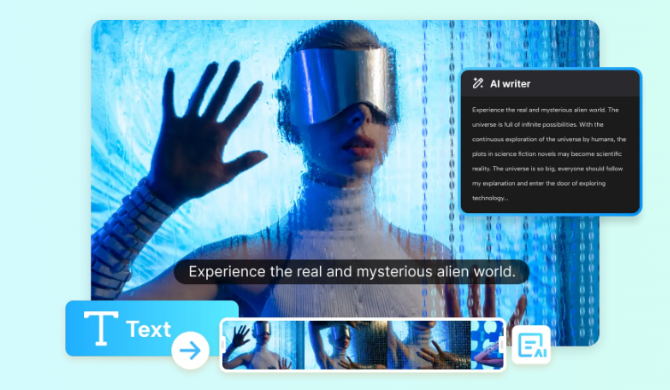
Scripts are used in the creative workflow and dictate video creation, messaging in campaigns, and brand narratives. The CapCut desktop AI writer assists creative teams in building clear script designs in little time, enabling the teams to concentrate on polishing rather than creating designs de novo.
This is an aid to innovative teams:
- Write campaign videos and brand scripts.
- Ensure that there is consistency in messages across projects.
- Write scripts to fit other clients/platforms.
- Cut down on the time taken for first drafting.
Full Workflow Using CapCut AI Writer
Step 1: Open the AI video maker
- Launch CapCut Desktop.
- Using the main interface, choose “AI video maker”.
- Select “Brainstorm with AI” to start brainstorming.
Step 2: Brainstorm with AI
- Provide a word or phrase associated with a creative team project, including:
“Prepare a campaign script brief for a creative team that is launching a new brand identity.
- Review the generated ideas.
- Select the appropriate choices with Pick or do further research with Explore.
- After the selection of ideas, they are translated into a format of talking points.
- Click “Generate script.”
Step 3: Generate script
- Depending on the chosen direction, the AI constructs an entire script.
- Select the right length of script based on content requirements.
- Enter any additional requirements in the field of More requirements: brand tone or platform needs.
- Click on generate to generate the script.
Step 4: Test and implement the script
- Check the script that was created against project objectives.
- Click on Use to apply the script to the project.
- In case of any necessary changes, choose create again or go back to editing.
CapCut AI Logo Generator (Desktop)
Benefits for Creative Teams
Logos are the necessary brand elements that are employed in video, presentation, and marketing materials. It is not uncommon for creative teams to consider several visual paths before coming up with a design. CapCut Desktop, the AI logo generator, enables a team to quickly generate and refine logo ideas through stability.
Creative teams can be assisted using this tool:
- Design brand logos, campaign logos, or sub-brand logos.
- Develop visual styles in early concept development.
- Be consistent in brand assets.
- Respond quickly to feedback
Full Workflow Using CapCut AI Logo Generator
Step 1: Enter text prompt
- Open CapCut Desktop and make a new project.
- Navigate to AI media > AI image.
- Write a description of the logo in detail with brand values, style preferences, and intended audience.
- Optional: Add a reference image to steer the visual channel.
Step 2: Generate logo
- Choose one of the generation models, like:
Nano Banana Pro
Seedream 4.0
Seedream 3.0
Seedream 3.1
Flux 1.1 Pro
- Click “Generate.”
- Examine the logo designs that the AI generated.
Step 3: Edit logo
- Refine the chosen logo with the help of the editing tools of CapCut.
- Change fonts, colors, stickers, and effects to suit brand guidelines.
- Do alterations according to internal review or client feedback.
Step 4: Export logo
- Tap the menu with three lines above the editing panel.
- Select “Export still frames.”
- Select the format and resolution you want (to 8K).
- Click export to save the finished logo.
CapCut Online Photo Editor (Web)
Besides the Desktop tools, CapCut has an online photo editor, which is browser-based, thus allowing quick visual edits. Since it does not need a download, creative teams can quickly edit the images right inside the browser, allowing them to work in flexible teams and make quick changes toward project deadlines.
Conclusion
The workflow of creative teams can be managed to be less frictional and maintain creative control. CapCut Desktop offers AI-supported features that allow the team to create scripts and create brand assets more quickly by creating structured initial points of content and design. These artificial intelligence processes facilitate productivity, uniformity, and cooperation within projects.
Combining both desktop AI tools with online Browser editing tools allows creative teams to handle the rigorous production timetables and still create a unified brand output with CapCut.